How to Retouch Different Skin Types in Photoshop
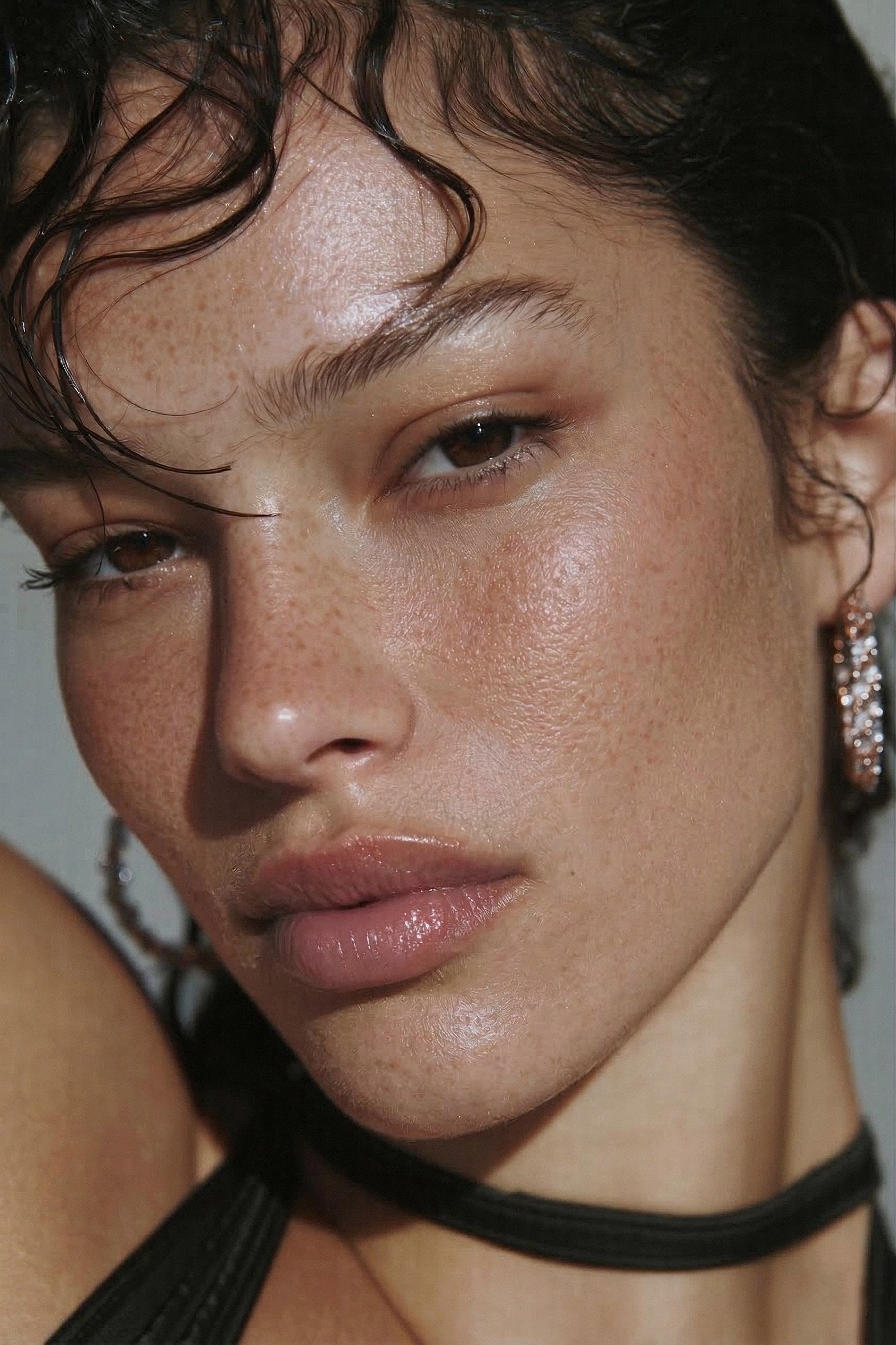 BEFORE
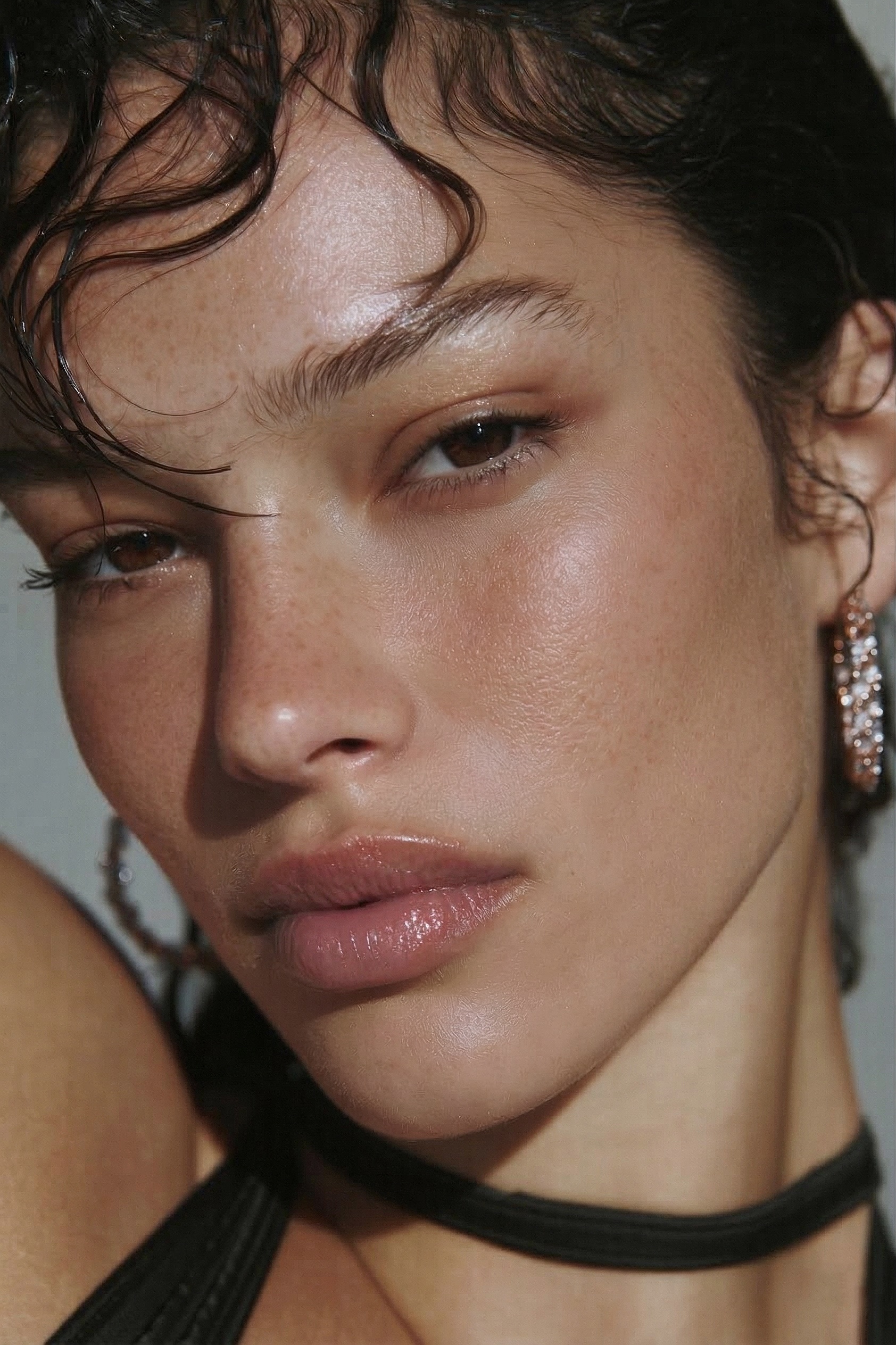 AFTER · 30s
Every skin type fails differently when you over-retouch it — but they all succeed the same way. The trick is to even the tone (redness, blotches, shine, scarring) while leaving the texture (pores, fine detail) untouched. That's the difference between real skin and the plastic, airbrushed look. Here's how it applies to the four hardest cases.
Newborn Skin
Newborn skin is the hardest retouch in photography — it's delicate, blotchy, often red or flaky, and the texture is incredibly soft. The mistake is over-smoothing: a smoothed baby looks like a doll, not a person. Only even the redness and blotchiness, and never blur the soft texture. Work with a very light hand on tone, leave the skin's natural surface alone, and keep the peach-fuzz. Natural smoothing is about restraint here more than anywhere.
Darker & Deeper Skin Tones
The biggest problem with darker skin tones is that most one-click and AI tools lighten or wash out the richness — they brighten the whole face and flatten the depth. The goal is to even the tone transitions without raising brightness and without losing the natural detail and dimension. A tone-only, brush-based adjustment you fully control is far safer than an automatic slider, because you decide exactly how much and where — so the skin stays rich, even, and true to the person.
Oily & Shiny Skin (from Flash)
Shine is just a blown-out highlight where flash hit oily skin. The instinct is to blur it — which erases texture and leaves a smudge. Instead, knock down the brightness of the hotspot with dodge & burn and even the tone, while keeping the pores. Reduce the shine, don't remove the skin. Done right, the forehead and nose look matte and natural, not painted over.
Acne & Acne Scars
Acne is two jobs, not one. First, heal the individual blemish with spot healing. Then even the surrounding redness and scarring tone — but keep the pores around it. The classic mistake is smoothing the whole cheek to hide a few spots, which wipes the texture and screams "edited." Heal the spot, even the tone around it, leave the real skin, and it reads as clear, natural skin.
The Fast Way for Every Skin Type
The reason this is hard manually is that every type needs frequency separation plus dodge & burn plus tone evening — a lot of layers per photo. RetouchLab Skin Pro puts all three into one brush, so you handle newborn softness, darker-tone richness, flash shine, or acne in about 30 seconds per photo — and because it's brush-based with 7 adjustable settings, you control the strength for each skin type. Texture stays; tone evens.
Every Skin Type, 30 Seconds Each
One brush for newborn, darker tones, oily skin, and acne — tone evened, real texture kept, full control. No frequency-separation setup.
FREE 3 DAY TRIAL →Frequently Asked Questions
How do I retouch newborn skin in Photoshop without it looking fake?
Even out the redness and blotchiness only, and never blur the soft baby texture. Over-smoothing makes newborn skin look plastic and unnatural. Work on tone with a light touch and leave the texture alone.
How do I retouch darker skin tones without lightening them?
Even the tone transitions without raising brightness. Most AI tools wash out richer skin tones; the fix is a tone-only adjustment you control, so you keep the natural depth and detail. RetouchLab is brush-based, so you decide the strength and it never lightens the skin.
How do I fix shiny or oily skin from flash in Photoshop?
Don't blur the shine away. Knock down the brightness of the hotspot with dodge & burn and even the tone, keeping the pores. RetouchLab combines dodge & burn and tone evening in one brush so you reduce shine without losing texture.
How do I remove acne but keep skin texture?
Heal the individual blemish first (spot healing), then even the surrounding redness and tone without smoothing the whole area. Keep the pores around the spot and it reads as real skin, not airbrushed.
How do I even out uneven skin tone across the face in Photoshop?
Target the tone, not the texture. Even the blotches, redness, and shadow transitions while leaving pores intact. A brush-based plugin like RetouchLab lets you even tone selectively, face by face.
See it work → try the free live demo