How to Smooth Skin in Photoshop Naturally
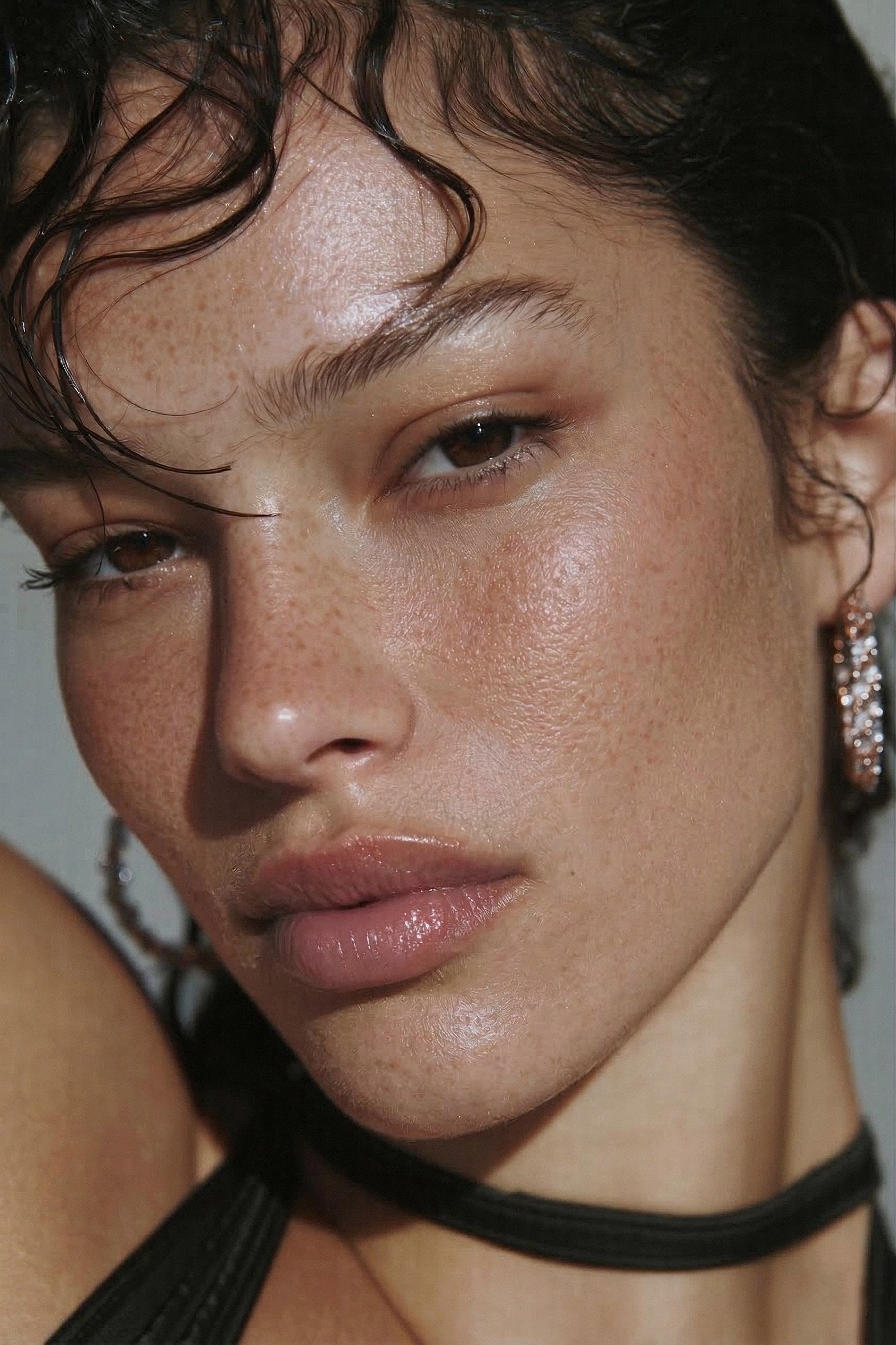 BEFORE
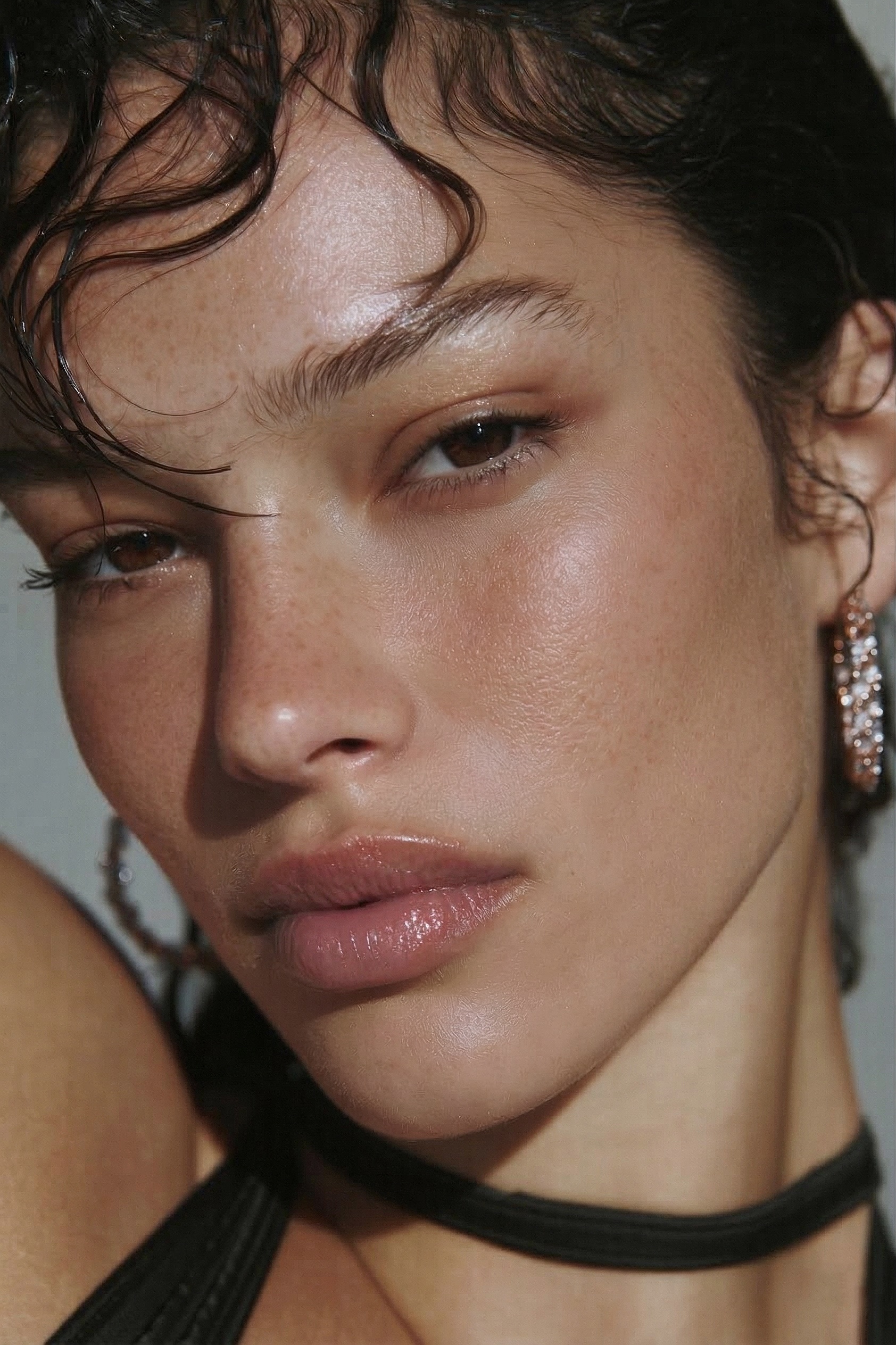 AFTER · 30s
The secret to natural smoothing is simple: separate the texture from the tone, fix the tone, and leave the pores alone. That technique is called frequency separation.
⚡ The shortcut to natural smooth skin
Smoothing skin without the plastic look means separating tone from texture by hand — fiddly, and easy to overdo. The hack: RetouchLab Skin Pro evens the tone and leaves the pores in one brush stroke (~30 seconds), so it stays real. Read the manual method below, or just skip to the shortcut.
FREE 3 DAY TRIAL →The Manual Method
- Duplicate your layer twice — one for low frequency (tone/colour), one for high frequency (texture).
- Blur the low-frequency layer to even out blotches and shadows.
- Leave the high-frequency texture layer untouched, so pores and detail survive.
The Mistake That Makes Skin Plastic
Reaching for a blur or "Skin Smoothing" slider on the whole image. It wipes out texture along with the flaws — the instant giveaway of cheap retouching.
The Fast Way
RetouchLab Skin Pro does the separation for you and lets you brush smoothing exactly where it's needed — tone evened, texture intact, about 30 seconds per photo.
Smooth Skin in 30 Seconds
Texture-preserving smoothing without the frequency-separation setup. Brush it where you want it — natural skin, every time.
FREE 3 DAY TRIAL →Frequently Asked Questions
How do I smooth skin without losing texture?
Separate tone from texture (frequency separation) and only smooth the tone layer. Or use a brush-based tool that does it automatically.
What's the fastest way to smooth skin in Photoshop?
A brush-based plugin — around 30 seconds per photo versus several minutes of manual frequency separation.
Why does my smoothed skin look fake?
You've over-blurred and removed texture. Keep the pores and the result reads as real skin.
How do I retouch skin without it looking fake?
Even out the tone but leave the texture alone. The fake look comes from blurring the pores away, so keep them and the skin reads as real. A brush-based plugin like RetouchLab evens the tone while the pores stay untouched.
How do I add skin texture back after retouching?
The cleaner fix is to never remove it: smooth only the tone and the real pores stay, so there is nothing to add back. If texture is already gone, sample skin from a sharper area, but retouching without blurring avoids the problem entirely.
Smooth Skin in 30 Seconds
Texture-preserving smoothing without the frequency-separation setup. Brush it where you want it — natural skin, every time.
FREE 3 DAY TRIAL →See it work → try the free live demo