How to Retouch Skin in Photoshop — The Complete Guide
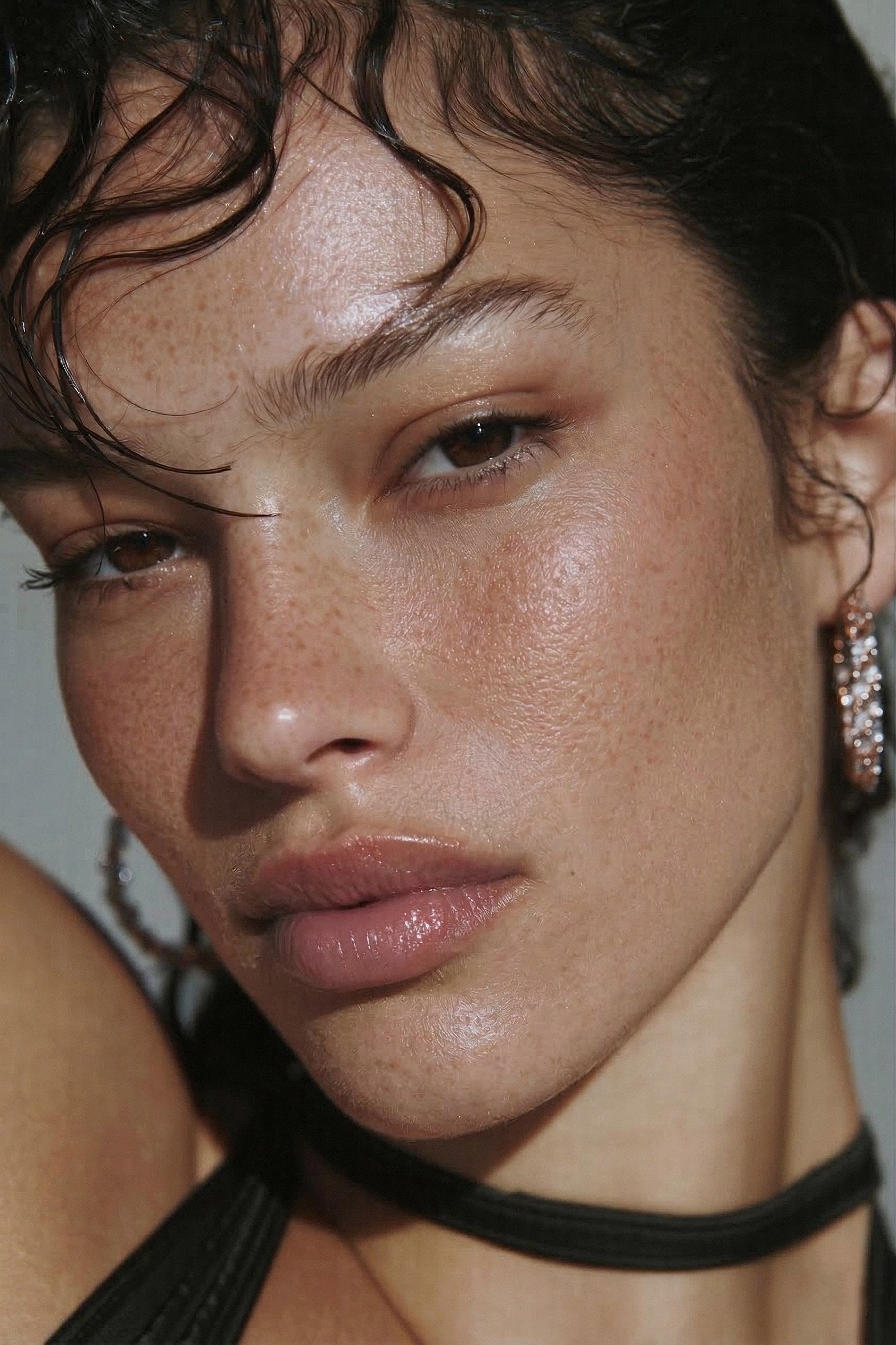 BEFORE
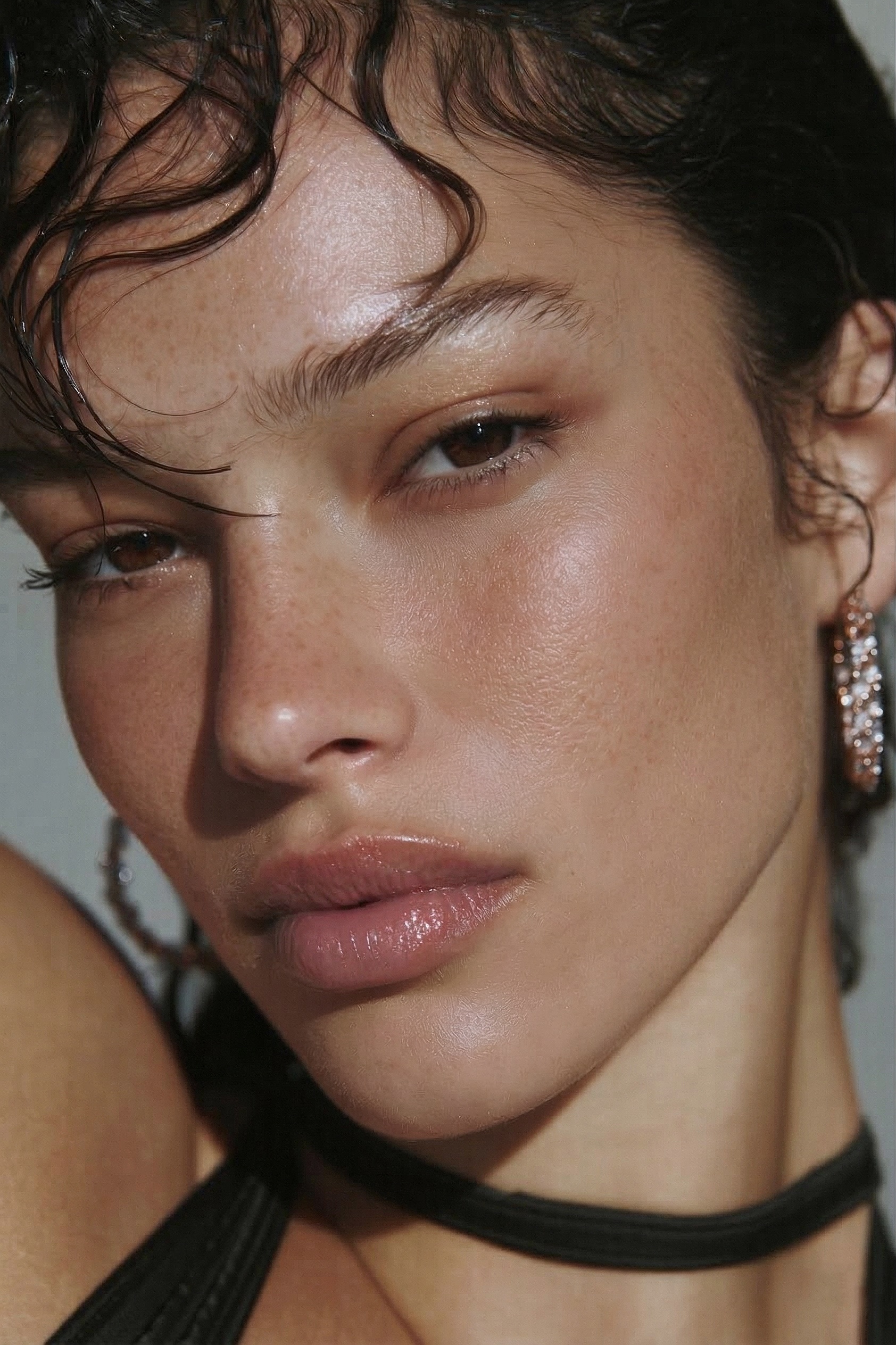 AFTER · 30s
I'm a portrait photographer shooting 10–15 sessions a week. When I started, skin retouching was the part I dreaded most — it's slow, it's fiddly, and it's shockingly easy to overdo. Push a slider a little too far and suddenly your client looks like a wax figure. Not far enough and the blotches and blemishes are still there.
This guide is everything I wish someone had told me at the start. It covers how to retouch skin in Photoshop the way professional retouchers actually do it — every real technique, explained plainly enough that a beginner can follow — plus the one mistake that makes skin look fake, and the shortcut I switched to once I got tired of spending my evenings on layers.
⚡ Want to skip straight to the fast way?
The manual methods below are the real thing and worth understanding. But if you just want professional skin now, RetouchLab Skin Pro does frequency separation + dodge & burn + tone evening in one brush — about 30 seconds, texture kept. Read the full guide, or try it free.
FREE 3 DAY TRIAL →The 4 Real Steps of Skin Retouching
Every professional skin edit — no matter whose YouTube tutorial you follow — is some version of these four steps, done in this order:
- Remove blemishes — clear the temporary stuff (spots, flyaway hairs, scratches).
- Frequency separation — even out blotchy tone while keeping the texture (pores) intact.
- Dodge & burn — smooth out harsh shadows and hotspots so the skin looks evenly lit.
- Skin-tone correction — fix redness, unify the overall colour, make it look healthy.
The order matters: you fix the obvious spots first, then work from big problems (uneven tone and light) down to the finishing colour. Here's each one.
Step 1: Spot Healing & Healing Brush (Blemishes)
This is the first thing to learn and the one step you'll use on literally every portrait. It removes the temporary things — a spot, a stray hair, a bit of dry skin — that the person wouldn't have next week anyway.
- Duplicate your layer (Cmd/Ctrl + J) so you never touch the original.
- Grab the Spot Healing Brush (J). Set it a little larger than the blemish, then simply click on the spot — Photoshop samples the surrounding skin and blends it away automatically. Great for isolated blemishes.
- For anything near an edge (jawline, hairline, nostril) switch to the Healing Brush (J). Alt/Option-click a clean patch of skin to set your source, then paint over the flaw — you control exactly what it copies from, so it won't smear in the wrong texture.
- Zoom to 100% and work spot by spot. Only remove what's temporary — leave permanent features (moles, freckles, character lines) alone.
Beginner tip: tick "Sample All Layers" and heal onto a new blank layer instead of the copy — that keeps it fully non-destructive and undoable. Full blemish-removal walkthrough here →
Step 2: Frequency Separation (Texture vs Tone)
This is the technique that separates real retouching from a blur filter, and it's the one people mean when they talk about "professional" skin work. The idea is simpler than it sounds: an image is really two things stacked together — colour and tone (the soft, low-frequency information) and texture (the fine, high-frequency pore detail). Frequency separation splits them onto two layers so you can fix the blotchy tone without ever touching the pores.
- Duplicate your healed layer twice. Name the lower copy "Low" (tone) and the upper copy "High" (texture).
- Select the Low layer → Filter → Blur → Gaussian Blur. Raise the radius until the pores just disappear but the shapes of the face remain (usually ~4–10px on a high-res file). This layer now holds only tone and colour.
- Select the High layer → Image → Apply Image. For a 16-bit file set Layer: Low, Blending: Subtract, Scale: 2, Offset: 128. (For 8-bit, use Blending: Add, Scale 2, Offset 0, and tick Invert.) Then set that High layer's blend mode to Linear Light. Your image looks normal again — but tone and texture are now on separate layers.
- To retouch: click the Low layer, grab a soft Mixer Brush or Lasso + Gaussian Blur, and gently smooth uneven patches, blotches and colour transitions. Because you're only working the tone layer, the pores on the High layer stay perfectly sharp.
That's the whole trick: smooth the tone, never the texture. It's powerful — and, honestly, a faff to set up on every single photo. Full step-by-step frequency separation tutorial →
Step 3: Dodge & Burn (Evening the Light)
Even after frequency separation, skin can still look uneven because of light and shadow — a shiny forehead, a dark under-eye, a blotch that's really just a shadow. Dodge & burn fixes that by selectively brightening (dodge) the too-dark spots and darkening (burn) the too-bright ones, so the light across the skin reads smooth. It's how retouchers get that expensive, sculpted finish.
- Create a new layer filled with 50% grey (Edit → Fill → 50% Gray) and set its blend mode to Soft Light — the grey vanishes and becomes invisible.
- Take a soft, very low-opacity brush (5–10%). Paint with white to lift dark areas (dodge) and black to knock back bright areas (burn). Build it up slowly in many light passes.
- Work at low zoom too, so you can see the overall balance and don't create new blotches. The goal is even, not flat.
Done well, nobody can tell you did it — the skin just looks like it was lit better. If you want the deeper comparison, see frequency separation vs dodge & burn.
Step 4: Skin-Tone Correction (Colour)
The last step is colour: calming down redness (around the nose, chin, cheeks), unifying patches where the skin goes too yellow or too pink, and landing on a tone that looks healthy rather than flat.
- Add a Hue/Saturation adjustment layer, target the Reds, and gently drop saturation to tame red patches — mask it so it only hits the skin.
- For a shift in overall warmth, a Selective Color or Curves layer nudges the reds/yellows until the tone is even and natural. Small moves only.
- If one area (say, a red chin) is way off, a masked Solid Color layer set to Color blend mode, sampled from good skin nearby, evens it fast.
Keep it subtle. Real skin isn't a single flat colour, so a slightly uneven, living tone always reads more believable than a uniform mask. Full skin-tone guide → · Different complexions need different handling — see retouching different skin types.
The Mistake That Makes Skin Look Fake
If your retouching ever looks "off," it's almost always the same thing: over-smoothing. It's the number-one beginner mistake and the fastest way to ruin a good photo.
Real human skin has texture — pores, fine lines, a little unevenness. The instant you blur that away (with a heavy Surface Blur, a "Skin Smoothing" slider, or a frequency-separation pass pushed too hard), the skin stops looking like skin and starts looking like plastic or a 3D render. Clients feel it even when they can't name it: "it doesn't look like me."
The rule that fixes it: even the tone, keep the texture. You're not trying to make skin flawless — you're making it look like the person woke up on a great skin day. If you can still see pores, you're doing it right. The moment they vanish, you've gone too far. Less is always more.
The Fast Way: RetouchLab Skin Pro
Here's the honest truth after years of doing all four steps by hand: they work, but they're slow. A careful frequency-separation-plus-dodge-and-burn edit is 20–45 minutes per portrait. When you're shooting 10–15 sessions a week, that's the maths that made me burn out — and eventually made me build my own tool.
RetouchLab Skin Pro is a Photoshop plugin (on Adobe Exchange) that runs all four of those techniques at once. It sets up the frequency-separation layers, the dodge & burn, and the tone evening automatically — you just paint over the skin with a brush, and adjust the strength with sliders. It's brush-based on purpose: you decide where it applies and how much, so you keep full control instead of letting an AI reshape the whole face.
- Open your portrait in Photoshop.
- Launch RetouchLab Skin Pro from the Plugins menu and click Run — it builds the layers for you.
- Paint over the skin with the brush.
- Nudge the sliders to taste. Done.
Same core techniques as manual frequency separation and dodge & burn — just far faster. Because it works the tone and light and leaves the high-frequency detail alone, the pores stay put: real texture, no plastic look. That's the whole reason it exists.
Try It on Your Own Photos
Frequency separation + dodge & burn + tone evening in one brush. Real-time preview, full control, real texture kept. Professional skin in about 30 seconds.
FREE 3 DAY TRIAL →Which Method Should You Use?
- One or two blemishes: Spot Healing Brush is all you need.
- Learning / editorial & print work where you want full manual control: frequency separation + dodge & burn by hand. Slow, but the ceiling is highest.
- Any real volume — weddings, events, mini-sessions, batches over ~5 photos: a brush-based plugin like RetouchLab Skin Pro. This is where hand-retouching stops being realistic.
- Beginner who wants professional results without the learning curve: the plugin does the technique so you don't have to learn the layer setup first.
What Photographers Are Saying
These are real, verified reviews from Adobe Exchange — copied word for word, nothing edited:
RetouchLab Skin Pro is a young plugin — only about 3 months old — already used by 1000+ photographers and rated 5 stars on Adobe Exchange.
Frequently Asked Questions
How do you retouch skin in Photoshop?
The professional workflow is four steps: remove blemishes with the Spot Healing and Healing Brush, even the texture and tone separately with frequency separation, balance light and shadow with dodge & burn, then correct the overall skin tone. A brush-based plugin can combine those steps into one pass in about 30 seconds while keeping real pores.
Is there a faster way to retouch skin than frequency separation?
Yes. A brush-based plugin like RetouchLab Skin Pro combines frequency separation, dodge & burn, and tone evening into a single brush — about 30 seconds per photo versus 15 to 30 minutes building the layers by hand.
How long should skin retouching take?
By hand, a careful frequency-separation and dodge-and-burn edit takes 15 to 45 minutes per portrait. With a one-brush plugin it drops to roughly 30 to 60 seconds, which is what makes retouching a full wedding gallery realistic.
Do I need to learn frequency separation to retouch skin?
No. It helps to understand the idea — tone and texture are separated so you can smooth one without destroying the other — but you don't have to build the layers yourself. A brush-based plugin runs the technique for you, so beginners get professional skin without learning the manual setup.
What is the mistake that makes retouched skin look fake?
Over-smoothing. Blurring the whole face wipes out the pores and fine texture, which is the plastic, airbrushed look clients notice. Real retouching evens the tone and leaves the texture intact.
Is there a free way to retouch skin in Photoshop?
Yes — the manual techniques in this guide (Spot Healing, frequency separation, dodge & burn) use only tools already inside Photoshop, so they cost nothing but time. If you want to skip the time, RetouchLab Skin Pro has a free live demo you can run in your browser, then €39 for 6 months or €79 lifetime, one-time.
How do beginners retouch skin in Photoshop?
Start with the Spot Healing Brush to clear blemishes, then even the tone with a soft, low-opacity approach and stop before the skin loses its pores. The most common beginner mistake is smoothing too far. A brush-based plugin removes the guesswork by keeping texture automatically.
Stop Spending Evenings on Skin
Frequency separation. Dodge & burn. Tone evening. All in one brush, ~30 seconds a photo, real texture kept. Built by a working portrait photographer for working portrait photographers.
FREE 3 DAY TRIAL →Want the shortlist of tools? See the best Photoshop retouch plugins for portrait photographers.
See it work → try the free live demo